miércoles, 11 de marzo de 2015

How to download and install Selenium Webdriver with Eclipse and Java Step By Step

How to download and install Selenium Webdriver with Eclipse and Java Step By Step

Download selenium webdriver and install selenium webdriver is not much more hard. Actually there is nothing to install except JDK. Let me describe you step by step process of download, installation and configuration of web driver and other required components. You can view my post about "What is selenium webdriver" if you wants to know difference between WebDriver and selenium RC software tool.


(Note : I am suggesting you to take a tour of Basic selenium commands tutorials with examples before going ahead for webdriver. It will improve your basic knowledge and helps you to create webdriver scripts very easily. )


Steps To Setup and configure Selenium Webdriver With Eclipse and Java

(Note : You can View More Articles On WebDriver to learn it step by step)
Step 1 : Download and install Java in your system
First of all you need to install JDK (Java development kit) in your system. So your next question will be "how can i download java" Click here to download Java and install it in your system as per given installation guide over there.

Step 2 : Download and install Eclipse
Download Eclipse for Java Developers and extract save it in any drive. It is totally free. You can run 'eclipse.exe' directly so you do not need to install Eclipse in your system.

Step 3 : Download WebDriver Jar Files.
Selenium webdriver supports many languages and each language has its own client driver. Here we are configuring selenium 2 with java so we need 'webdriver Java client driver'. Click here to go on WebDriver Java client driver download page for webdriver download file. On that page click on 'Download' link of java client driver as shown in bellow image.


(language-specific client driver's version is changing time to time so it may be different version when you will visit download page. )

Downloaded 'webDriver Java client driver' will be in zip format. Extract and save it in your system at path D:\selenium-2.33.0. There will be 'libs' folder, 2 jar files and change log in unzipped folder as shown in bellow figure. We will use all these files for configuring webdriver in eclipse.


Step 4 : Start Eclipse and configure it with selenium 2 (webdriver)

  • Select WorkSpace on eclipse start up
Double click on 'eclipse.exe' to start eclipse. First time when you start eclipse, it will ask you to select your workspace where your work will be stored as shown in bellow image. Create new folder in D: drive with name 'Webdriverwork' and select it as your workspace. You can change it later on from 'Switch Workspace' under 'file' menu of eclipse.


After selecting workspace folder, Eclipse will be open.
  • Create new project
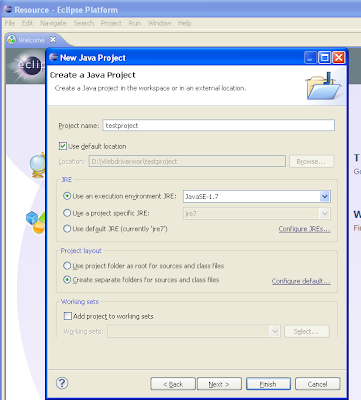
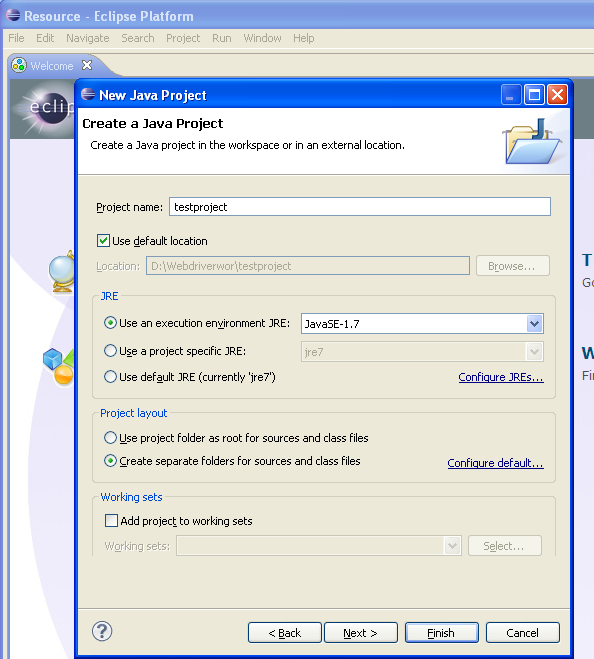
Create new java project from File > New > Project > Java Project and give your project name 'testproject' as shown in bellow given figures. Click on finish button.


Now your new created project 'testproject' will display in eclipse project explorer as bellow.


  • Create new package
Right click on project name 'testproject' and select New > Package. Give your package name = 'mytestpack' and click on finish button. It will add new package with name 'mytestpack' under project name 'testproject'.


  • Create New Class
Right click on package 'mytestpack' and select New > Class and set class name = 'mytestclass' and click on Finish button. It will add new class 'mytestclass' under package 'mytestpack'.


Now your Eclipse window will looks like bellow.


  • Add external jar file to java build path
Now you need to add selenium webdriver's jar files in to java build path.
  • Right click on project 'testproject' > Select Properties >Select Java build path > Navigate to Libraries tab
  • Click on add external JARs button > select both .jar files from D:\selenium-2.33.0.
  • Click on add external JARs button > select all .jar files from D:\selenium-2.33.0\libs
Now your testproject's properties dialogue will looks like bellow.


That's all about configuration of WebDriver with eclipse. Now you are ready to write your test in eclipse and run it in WebDriver.

You can Read My Post about how to write and run your first test in WebDriver.


download selenium webdriver, install webdriver, download webdriver selenium, selenium testing, selenium testing tool, how to download selenium webdriver, what is selenium webdriver, webdriver download, selenium webdriver download, selenium automation, selenium download, selenium install, install selenium webdriver, install selenium webdriver in eclipse, eclipse and selenium, java and selenium, how to install a server, selenium driver, how to setup selenium webdriver, download webdriver selenium, selenium webdriver tutorial java

martes, 2 de diciembre de 2014

Export from MySQL to CSV

Export from MySQL to CSV

Using command line tools to export data from a MySQL database into a CSV file is quite easy. Here's how:
mysql -uexampleuser -pletmein exampledb -B -e "select * from \`person\`;" | sed 's/\t/","/g;s/^/"/;s/$/"/;s/\n//g' > filename.csv
Here is some sample output of the above:
"id","username","group","password"
"1","tux","admin","5f4dcc3b5aa765d61d8327deb882cf99"
"2","tlugian","admin","5f4dcc3b5aa765d61d8327deb882cf99"
"3","saiyuki","admin","5f4dcc3b5aa765d61d8327deb882cf99"
"4","fred","staff","5f4dcc3b5aa765d61d8327deb882cf99"
"5","barney","staff","5f4dcc3b5aa765d61d8327deb882cf99"
"6","wilma","admin","5f4dcc3b5aa765d61d8327deb882cf99"
And now for the explanation:
Starting with the MySQL command. I wont explain the -u and -p options they are straight forward (if in doubt man mysql). The -B option will delimit the data using tabs and each row will appear on a new line. The -e option denotes the command to run once you have logged into the database. In this case we are using a simple SELECT statement.
Onto sed. The command used here contains three seperate sed scripts:
s/\t/","/g;s/^/"/        <--- this will search and replace all occurences of 'tabs' and replace them with a ",".
;s/$/"/;    <--- This will place a " at the start of the line.
s/\n//g    <---- This will place a " at the end of the line.
After running the result set through sed we redirect the output to a file with a .csv extension.
Regards, Bawdo2001 

jueves, 25 de septiembre de 2014

NODE JS.


Globals.js contains configuration 
use var winston = require('winston');  //a multi-transport async logging library for node.js
config 
var logger = new (winston.Logger)({  
  transports: [  
   new (winston.transports.Console)({ json: true, timestamp: true }),  
   new winston.transports.File({ filename: __dirname + '/logs/backup.log', json: false })  
  ],  
  exceptionHandlers: [  
   new (winston.transports.Console)({ json: true, timestamp: true }),  
   new winston.transports.File({ filename: __dirname + '/logs/exceptions.log', json: false })  
  ],  
  exitOnError: false  
 });  
 //Store configuration as objects for example  
 var config = {};  
 // MySQL configuration  
 config.mysql = {};  

 config.mysql.client_qa = {  
     user:'user',  
     password:'mipass',  
     host:'localhost'  
 };  
//In Node, things are only visible to other things in the same file. By things, I mean variables, functions, classes and class members. Exports allow to access the exported variables in other file with require statement.
exports.header = header;
exports.config = config;

exports.logger = logger;
//exports is a module 

Main.js //Is the node executed file contains all the instructions to be executed. 

var chokidar = require('chokidar'); //A neat wrapper around node.js fs.watch / fs.watchFile.
var sleep = require('sleep'); //Add sleep() and usleep() to nodejs. This is mainly useful for debugging.
var header = require('./Globals').header();  
 var config = require('./Globals').config;  
 var xmlHandler = require('./XMLHandler'); //The XMLandler.js   
 var veo = chokidar.watch(config.xml_deposit(config.msos[0]), {ignored: /^\./, persistent: true});  
 //chokidar manage actions for add, change, unlink  
 veo  
  .on('add', function(path) {  
      console.log('File', path, 'has been added');  
      if (path.substr(-3) == "xml" ){  
           if (path.indexOf(config.msos[0]) >= 0){  
                var msoS = config.msos[0];  
                console.log("New File Received ("+new Date()+") : [MSO] "+msoS+" [Path] "+config.xml_deposit(msoS)+" [FileName] "+path.substr(path.lastIndexOf("/")+1) );  
                sleep.sleep(5);  
                xmlHandler.handleFile(msoS, path.substr(path.lastIndexOf("/")+1)); //Here we are going to handle the xml File  
           }  
      }  
  })  
  .on('change', function(path) {  
      console.log('File', path, 'has been changed');  
  })  
  .on('unlink', function(path) {  
      console.log('File', path, 'has been removed');  
  })  
  .on('error', function(error) {  
       console.error('Error happened', error);  
  })  

XML Handler.js 
var mysql = require('mysql');  
 var fs           = require('fs');  
 var xml2js      = require('xml2js');  
 var config = require('./Globals').config;  
 var logger = require('./Globals').logger;  
 var parser = new xml2js.Parser();  
 var system = require('child_process');  
 var filename = "";  
 var mso           = "";  
 var error      = false;  
 var mysql_config;  
 var client;  
 var http =require("http");  
 function handleFile(m, fn){  
      filename = fn;  
      mso = m;  
      fs.readFile(config.xml_deposit(mso)+filename, handleXML);  
 }  
 function handleXML(err, data) {  
      if (err){  
           system.spawn('cp', ['-r', config.xml_deposit(mso)+filename, config.xml_error(mso)+filename]);  
           system.spawn('cp', ['-r', config.xml_deposit(mso)+filename, config.xml_backup()+filename]);  
           system.spawn('rm', [config.xml_deposit(mso)+filename]);  
           throw new Error('['+mso+'][file_error] - Error en archivo '+filename+' marca tener un error de lectura de archivo eviando archivo a '+config.xml_error(mso)+filename+" e ignorando flujo");  
      } else {  
           parser.parseString(data, handleParsedData);  
      }  
 }  
 function handleParsedData(err, objectXML){  
      if (err){  
           system.spawn('cp', ['-r', config.xml_deposit(mso)+filename, config.xml_error(mso)+filename]);  
           system.spawn('cp', ['-r', config.xml_deposit(mso)+filename, config.xml_backup()+filename]);  
           system.spawn('rm', [config.xml_deposit(mso)+filename]);  
           throw new Error('['+mso+'][sintaxis] - Error en archivo '+filename+' marca tener un error de sintaxis XML enviando archivo a '+config.xml_error(mso)+filename+" e ignorando flujo");  
      } else {  
           var proveedor = objectXML.root.encabezado[0].proveedor[0];  
           var inicial = objectXML.root.encabezado[0].periodo[0].$.inicial;  
           var final = objectXML.root.encabezado[0].periodo[0].$.final;  
           var movimientos = objectXML.root.encabezado[0].numero_movimientos[0];  
           //Step 0: Validate that the number of "movimientos" reported on the XML is actually the number that exist in it.  
           if (movimientos != objectXML.root.movimiento.length){  
                system.spawn('cp', ['-r', config.xml_deposit(mso)+filename, config.xml_error(mso)+filename]);  
                system.spawn('cp', ['-r', config.xml_deposit(mso)+filename, config.xml_backup()+filename]);  
                system.spawn('rm', [config.xml_deposit(mso)+filename]);  
                throw new Error('['+mso+']['+movimientos+']['+objectXML.root.movimiento.length+'] - Error en archivo '+filename+' marca tener '+movimientos+' movimiento(s) cuando en realidad hay '+objectXML.root.movimiento.length+' movimiento(s) enviando archivo a '+config.xml_error(mso)+filename+" e ignorando flujo");  
           } else {  
                //Step 1: Insert the XML header in MySQL DB  
                mysql_config = config.mysql;  
                client = mysql.createPool(mysql_config.client_qa);           
             insertaXML(proveedor, inicial, final, movimientos, objectXML);  
           }                      
      }            
 }  
 function insertaXML (proveedor, inicial, final, movimientos, objectXML) {  
      var queryStr = "INSERT INTO `msodb`.`xml` (`id` ,`proveedor` ,`inicial` ,`final` ,`movimientos`) VALUES (NULL , '"+proveedor+"', '"+inicial+"', '"+final+"', "+movimientos+");";  
      client.getConnection(function (err0, connection) {  
           if (err0){  
                system.spawn('cp', ['-r', config.xml_deposit(mso)+filename, config.xml_backup()+filename]);  
                system.spawn('rm', [config.xml_deposit(mso)+filename]);  
                throw new Error('['+mso+']['+filename+'] - Error en MySQL no hay conexión, se requiere ingestar nuevamente el archivo.');  
           } else {  
                connection.query('USE ' + mysql_config.database);  
                connection.query(queryStr, function (err, results, fields) {  
                          if (err) {  
                               logger.info(queryStr);  
                               console.log(err);  
                          } else {  
                               if (results.affectedRows == 1){                              //Step 2: Insert the movements in the MySQL DB  
                               getEmail(results.insertId, proveedor, objectXML, connection);  
                        //  insertaMovimientos(results.insertId, proveedor, objectXML, connection);  
                          } else {  
                               logger.info(queryStr);  
                          }       
                     }       
                });  
           }  
      });            
 }  
 function getEmail(xml,mso,objeto,connection){  
     var contracts= [];  
     var msoId = {  
       "VEO" : 1,  
       "CABLEVISION" : 2,  
       "CABLEMAS" : 3,  
       "SKY" : 4,  
     };  
     for (var x = 0; x < objeto.root.movimiento.length; x++ ){  
       contracts[x]= objeto.root.movimiento[x].id[0];  
     }  
     jsonObject = JSON.stringify({"contracts":contracts.join(), "mso":msoId[mso]});  
     var emails="";  
         var postheaders = {  
           'Content-Type' : 'application/json',  
           'Content-Length' : Buffer.byteLength(jsonObject, 'utf8')  
         };  
          var options = {  
           host: config.ws.host,  
           port: config.ws.port,  
           path: config.ws.path,  
           method: config.ws.method,  
           headers: postheaders  
          };  
         // do the POST call  
         var reqPost = http.request(options, function(res) {  
           res.on('data', function(d) {  
             emails+=d;  
             insertaMovimientos(xml,mso,objeto,connection,emails);  
           });  
         });  
         // write the json data  
         reqPost.write(jsonObject);  
         reqPost.end();  
         reqPost.on('error', function(e) {  
           console.error(e);  
         });   
 }  
 function insertaMovimientos(xml, mso, objeto, connection,emails){  
     var emailsArray=JSON.parse(emails);  
      error = false;       
      for (var x = 0; x < objeto.root.movimiento.length; x++ ){  
           var idmso           = objeto.root.movimiento[x].id;  
           var nombre          = objeto.root.movimiento[x].usuario[0].nombre;  
           if (objeto.root.movimiento[x].usuario[0].direccion != null){  
                var calle          = objeto.root.movimiento[x].usuario[0].direccion[0].calle;  
                var ciudad          = objeto.root.movimiento[x].usuario[0].direccion[0].ciudad;  
                var colonia          = objeto.root.movimiento[x].usuario[0].direccion[0].colonia;  
                var municipio     = objeto.root.movimiento[x].usuario[0].direccion[0].municipio;  
                var delegacion     = objeto.root.movimiento[x].usuario[0].direccion[0].delegacion;  
                var numero_exterior     = objeto.root.movimiento[x].usuario[0].direccion[0].numero_exterior;  
                var numero_interior     = objeto.root.movimiento[x].usuario[0].direccion[0].numero_interior;  
                var estado          = objeto.root.movimiento[x].usuario[0].direccion[0].estado  
                var pais          = objeto.root.movimiento[x].usuario[0].direccion[0].pais  
                var cp               = objeto.root.movimiento[x].usuario[0].direccion[0].cp;  
           } else {  
                var calle, ciudad, colonia, municipio, delegacion, numero_exterior, numero_interior, estado, pais, cp;  
                calle = ciudad = colonia = municipio = delegacion = numero_exterior = numero_interior = estado = pais = cp = 'n/a';  
                cp = '-1';  
           }  
           //var email          = objeto.root.movimiento[x].usuario[0].email;  
           var fase          = objeto.root.movimiento[x].fase+"";  
           var tipo          = objeto.root.movimiento[x].tipo;  
           if (fase.toUpperCase() == "COBRADO"){  
                var monto_facturado          = objeto.root.movimiento[x].monto_facturado;  
           } else if (fase.toUpperCase() == "PAGADO"){  
                var monto_facturado          = objeto.root.movimiento[x].monto_pagado;  
           } else if (fase.toUpperCase() == "EMITIDO"){  
                var monto_facturado          = objeto.root.movimiento[x].monto_facturado;  
           } else {  
                var monto_facturado          = objeto.root.movimiento[x].monto_facturado;  
           }  
           var fecha          = objeto.root.movimiento[x].fecha;            
           var sc               = "0";  
         var email=findEmail(emailsArray,idmso);  
           var queryStr = "INSERT INTO `msodb`.`movimiento` (`id_xml`, `sc`, `mso`, `idmso`, `nombre`, `calle`, `ciudad`, `colonia`, `municipio`, `delegacion`, `numero_exterior`, `numero_interior`, `estado`, `pais`, `cp`, `email`, `fase`, `tipo`, `monto`, `concepto`, `fecha`) VALUES ("+xml+", '"+sc+"', '"+mso.toUpperCase()+"', '"+idmso+"', '"+nombre+"', '"+calle+"', '"+ciudad+"', '"+colonia+"', '"+municipio+"', '"+delegacion+"', '"+numero_exterior+"', '"+numero_interior+"', '"+estado+"', '"+pais+"', '"+cp+"', '"+email+"', '"+fase.toUpperCase()+"', '"+tipo+"', "+monto_facturado+", 'Suscripción Mensual SVOD', '"+fecha+"');";  
           queryStr = queryStr.split("[object Object]").join("n/a");  
           connection.query(queryStr, function (err, results, fields) {  
                     if (err) {  
                               if (err.code == "ER_DUP_ENTRY"){  
                                    var queryUpdate = queryStr.substr(queryStr.indexOf("VALUES (")+8);  
                                    queryUpdate = queryUpdate.substr(0,queryUpdate.length-2);  
                                    var items = queryUpdate.split(',');  
                             console.log(err);  
                                    var queryUpdate = "id_xml="+items[0]+",sc="+items[1]+",mso="+items[2]+",idmso="+items[3]+",nombre="+items[4]+",calle="+items[5]+",ciudad="+items[6]+",colonia="+items[7]+",municipio="+items[8]+",delegacion="+items[9]+",numero_exterior="+items[10]+",numero_interior="+items[11]+",estado="+items[12]+",pais="+items[13]+",cp="+items[14]+",email="+items[15]+",fase="+items[16]+",tipo="+items[17]+",monto="+items[18]+",concepto="+items[19]+",fecha="+items[20];  
                                    queryUpdate = "UPDATE movimiento SET "+queryUpdate+" WHERE mso = '"+mso.toUpperCase()+"' AND idmso = "+items[3]+";";  
                                    actualizaMovimientos(queryUpdate, connection, objeto.root.movimiento.length, x, error);  
                               } else {  
                                    logger.info(queryStr);  
                                    console.log(err);  
                                    error = true;       
                                    finalStep( objeto.root.movimiento.length, x, error, connection);  
                               }  
                     } else {  
                               if (results.affectedRows == 1){                                   error = false;  
                                    finalStep( objeto.root.movimiento.length, x, error, connection);  
                               } else {  
                                    error = true;  
                                    logger.info(queryStr);  
                                    finalStep( objeto.root.movimiento.length, x, error, connection);  
                               }       
                     }  
           });  
      }  
 }  
 function actualizaMovimientos(queryStr, connection, original, count, error){  
      connection.query(queryStr, function (err, results, fields) {  
           if (err) {  
                logger.info(queryStr);  
                console.log(err);  
                error = true;       
                finalStep( original, count, error, connection);  
           } else {  
                if (results.affectedRows == 1){  
                     error = false;  
                     finalStep( original, count, error, connection);  
                } else {  
                     error = true;  
                     logger.info(queryStr);  
                     finalStep( original, count, error, connection);  
                }  
           }  
      });  
 }  
 function finalStep(original, count, error, connection){  
      if (original == count){  
           if (error){  
                system.spawn('cp', ['-r', config.xml_deposit(mso)+filename, config.xml_error(mso)+filename]);  
                system.spawn('cp', ['-r', config.xml_deposit(mso)+filename, config.xml_backup()+filename]);  
                system.spawn('rm', [config.xml_deposit(mso)+filename]);  
           } else {  
                system.spawn('cp', ['-r', config.xml_deposit(mso)+filename, config.xml_backup()+"/ok/"+filename]);  
                system.spawn('rm', [config.xml_deposit(mso)+filename]);  
           }       
           connection.end();       
      }  
 }  
 function findEmail(emails,contract){  
   for (var x=0; x< emails.length; x++){  
     if (emails[x].contract==contract)  
       return emails[x].email;  
   }  
   return null;   
 }  
 exports.handleFile = handleFile;  

martes, 9 de septiembre de 2014

OCI Driver installation on MAC


My current project involves using PHP with an Oracle database. Oracle apparently embraces PHP warmly and as such supports an open source database driver for the environment called OCI8. As a Mac user I was looking to use OS X's built-in Apache and PHP setup, which like many PHP installations does not have the Oracle OCI8 driver installed or enabled. It took me some time and research to get it up and running. I was using Oracle Express, a limited capability, free-ish version of Oracle's database. Oracle Express was installed on a separate Windows machine as it cannot run or be installed on Snow Leopard. I also assume that you enabled PHP in your Apache configuration (/etc/apache2/httpd.conf) and have a /etc/php.ini by copying it from/etc/php.ini.default.
OCI8 relies on OS X having several client libraries and tools from Oracle installed on OS X. For most intents and purposes download the 64-bit version of the following files under the title "Version 10.2.0.4 (64-bit)": 
Registration is required for all downloads.
Once downloaded, unzip all three files, which will look like this on your file system
Now, create a separate directory (which I called instantclient_10_2) and copy the contents of all the files included in these subfolders into it, which will look something like this:
The next step is to copy the necessary files into your OS X dynamic library and bin directories (as described here). Open a terminal window and go to the directory above the one you created containing all the files you unzipped.
sudo cp instantclient_10_2/sdk/include/*.h /usr/include
sudo cp instantclient_10_2/sqlplus /usr/bin
sudo cp instantclient_10_2/*.dylib /usr/lib
sudo cp instantclient_10_2/*.dylib.* /usr/lib
Now move to the /usr/lib directory and create the following link:
sudo ln -s libclntsh.dylib.10.1 libclntsh.dylib
To test, open another terminal window or tab, and try to run Oracle's SQL*Plus tool using
/usr/bin/sqlplus. If it worked, you are almost there. Exit SQL*Plus by entering quitor simply Ctrl+C.
You now have the Oracle tools installed. Now, to install OCI8, which we will install from the PECL repository. In a terminal window enter
sudo pecl install oci8
[If you see an error here, you may not have Pecl or Pear (PHP package managers) installed. In that case look at these installation instructions]
OCI8 will download and will eventually give you the prompt:
Please provide the path to the ORACLE_HOME directory. Use 'instantclient,/path/to/instant/client/lib' if you're compiling with Oracle Instant Client [autodetect] :
In response enter:
instantclient,/usr/lib
We are doing this because Oracle is not installed on our local machine. If it were we would respond with the path to Oracle's installation directory. Once entered, PECL will compile and build OCI8. Once done, it will ask you to enable the extension in your PHP configuration. To do that, open php.ini and add the line (normally among the list of extensions):
extension=oci8.so
Once done, you can start Apache again using
sudo apachectl start
To test the installation, enable the HR account in your Oracle installation and run a PHP file such as (make sure you replace the password and database server IP or name in the code):

1
2
3
4
5
6
7
8
9
10
11
12
13
14
15
16
17
18
19
20
21
22
23
&lt; ?php
$c = oci_connect(&#39;hr&#39;, <password here="">, &#39;<server ip="" name="" or="">/XE&#39;);
$s = oci_parse($c, &#39;select city, postal_code from locations&#39;);
oci_execute($s);
print &#39;&#39;;
while ($row = oci_fetch_array($s, OCI_NUM+OCI_RETURN_NULLS)) {
print &#39;&#39;;
foreach ($row as $item)
print &#39;&#39;;
print &#39;&#39;;
}
print &#39;
<table border="&quot;1&quot;">
 <tbody>
  <tr>
   <td>&#39;.htmlentities($item).&#39;</td>
  </tr>
 </tbody>
</table>
&#39;;
oci_free_statement($s);
?&gt;
</server></password>


I’m currently working on a project that requires data from a student information system (PowerSchool).  PowerSchool uses an Oracle database for it’s data layer so it became necessary to install the oci8 extension for my local development environment.  Google didn’t provide much in terms of start to finish steps, so I thought I’d detail my steps here to hopefully help someone else save some time.
My current local environment includes:
  • OS 10.9.2 (Mavericks)
  • MAMP Pro 3.0.5 (PHP Version 5.5.10)
  • Xcode (with command line tools) *required
We’re going to use PECL to install the extension.

To build the oci8 extension, you need the Oracle Instant Client Package -Basic and SDK.  Both of these can be downloaded here:

Note: The downloads are platform specific.  The above link is for the Mac OS X (Intel x86).  I downloaded Version 11.2.0.4.0 (64-bit)

You also need to download php for building the extension. Download here:

http://php.net/downloads.php
Note: Download the version pertinent to your MAMP installation.  I will use 5.5.10 for the purposes of this article.

Extract php:

tar zxf ~/Downloads/php-5.5.10.tar.bz2

Install the php source into MAMP:

mkdir /Applications/MAMP/bin/php/php5.5.10/include
mv ~/Downloads/php-5.5.10 /Applications/MAMP/bin/php/php5.5.10/include/php

Run configure to generate appropriate header files:

cd /Applications/MAMP/bin/php/php5.5.10/include/php
./configure --without-iconv

Extract the instantclient-basic zip file (instantclient-basic-macos.x64-11.2.0.4.0.zip):

unzip ~/Downloads/instantclient-basic-macos.x64-11.2.0.4.0.zip

Move the extracted folder, instantclient_11_2 to MAMP:

mv ~/Downloads/instantclient_11_2 /Applications/MAMP/bin/php/php5.5.10/lib/php/

Extract the instantclient-sdk zip file (instantclient-sdk-macos.x64-11.2.0.4.0.zip):

unzip ~/Downloads/instantclient-sdk-macos.x64-11.2.0.4.0.zip

Move the sdk folder inside the instantclient_11_2 we moved earlier:

mv ~/Downloads/instantclient_11_2/sdk /Applications/MAMP/bin/php/php5.5.10/lib/php/instantclient_11_2/

Create a symbolic link to the library:

cd /Applications/MAMP/bin/php/php5.5.10/lib/php/instantclient_11_2
ln -sf libclntsh.dylib.11.1 libclntsh.dylib


BREW INSTALL AUTOCONF (if phpize failed)


Use PECL to build and install the oci8 module:

cd /Applications/MAMP/bin/php/php5.5.10/bin/
./pecl install oci8

During the installation process, it will ask for the ORACLE_HOME path.  Use the following line:

instantclient,/Applications/MAMP/bin/php/php5.5.10/lib/php/instantclient_11_2

The build process should continue and end with something like:

...
Installing '/Applications/MAMP/bin/php/php5.5.10/lib/php/extensions/no-debug-non-zts-20121212/oci8.so'
install ok: channel://pecl.php.net/oci8-2.0.8
configuration option "php_ini" is not set to php.ini location
You should add "extension=oci8.so" to php.ini

The instantclient library has some hardcoded paths we need to take care of:

sudo mkdir -p /ade/b/3071542110/oracle/rdbms/lib/
sudo ln -sf /Applications/MAMP/bin/php/php5.5.10/lib/php/instantclient_11_2/libclntsh.dylib.11.1 /ade/b/3071542110/oracle/rdbms/lib/libclntsh.dylib.11.1
sudo mkdir -p /ade/dosulliv_ldapmac/oracle/ldap/lib/
sudo ln -sf /Applications/MAMP/bin/php/php5.5.10/lib/php/instantclient_11_2/libnnz11.dylib /ade/dosulliv_ldapmac/oracle/ldap/lib/libnnz11.dylib
We also need to update the DYLD_LIBRARY_PATH for MAMP.

Edit /Applications/MAMP/Library/bin/envvars with your favorite editor:

nano /Applications/MAMP/Library/bin/envvars

Add the following line just before “export DYLD_LIBRARY_PATH”:

DYLD_LIBRARY_PATH="/Applications/MAMP/bin/php/php5.5.10/lib/php/instantclient_11_2:$DYLD_LIBRARY_PATH"
Finally, in MAMP, we need to tell php to load the oci8 extension per the instructions in the build.
In MAMP, choose File -> Edit Template -> PHP -> PHP 5.5.10 php.ini

Find the section titled “Extensions”, add:

extension=oci8.so
Save the file and restart MAMP Pro.  You should now be able to use the oci extension in your php project!